
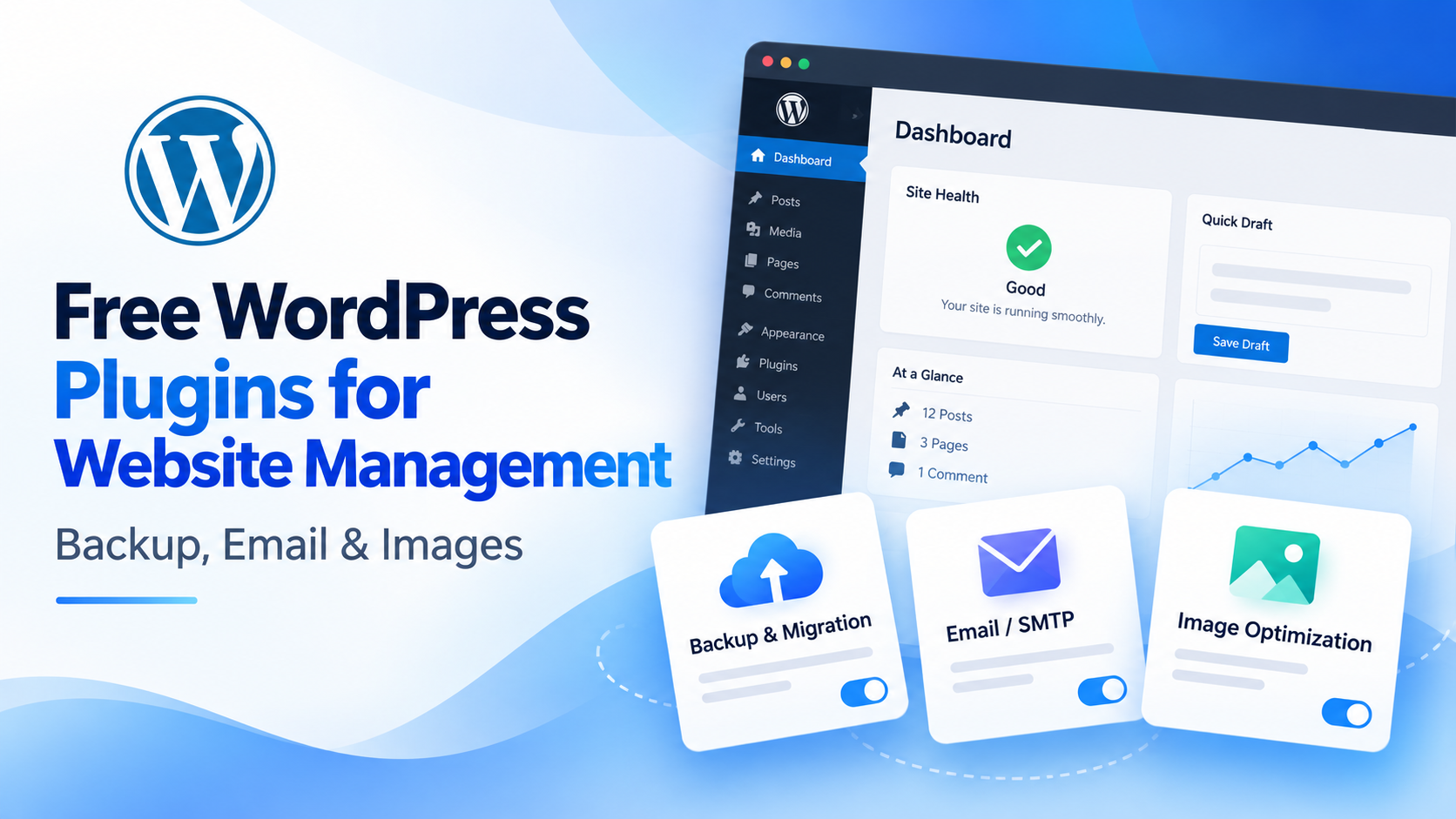
Managing a WordPress website involves more than installing a theme, publishing content, and keeping plugins updated. A well-maintained website also needs reliable backups, properly configured outgoing emails, and optimized images.
Whether you manage a business website, WooCommerce store, personal blog, or client projects, these essential tasks can directly affect your website’s reliability, user experience, and everyday operations.
The good news? You do not necessarily need an expensive collection of premium plugins to handle them.
In this guide, we’ll explore three free WordPress plugins for website management developed by United Web Host. Each plugin focuses on a different part of website maintenance:
- UWH Site Migrator – Create WordPress backups, restore websites, and migrate between compatible installations.
- UWH SMTP Connect – Configure SMTP email delivery, troubleshoot sending failures, and review email activity.
- UWH Image Optimizer & Converter – Optimize Media Library images, convert supported image formats, and manage bulk image optimization.
We’ll explain what each plugin does, when you should use it, and how they can work together as part of a practical WordPress management workflow.
Why WordPress Website Management Matters
WordPress is flexible, but keeping a website running smoothly requires regular maintenance.
A website can experience problems even when its design looks perfect.
For example:
- A failed update can damage website functionality.
- A hosting migration can result in missing files or database issues.
- Incorrect SMTP settings can prevent contact form notifications from being sent.
- Large, unoptimized images can increase page weight and loading time.
- Poor maintenance practices can make troubleshooting and recovery more difficult.
These issues affect different parts of your website, which is why a single plugin rarely solves every maintenance challenge.
A practical website management strategy should address three important areas.
1. Website Backup and Recovery
Your website should have recent, recoverable backups before major changes or unexpected failures.
2. Email Configuration and Troubleshooting
Your WordPress website needs a properly configured email transport for sending notifications, contact form messages, and WooCommerce emails.
3. Image Optimization and Media Management
Images should be appropriately sized and compressed to reduce unnecessary file weight without sacrificing acceptable visual quality.
These three areas form the foundation of the free WordPress toolkit covered below.
1. UWH Site Migrator – Free WordPress Backup, Restore & Migration Plugin
Backups are one of the most important parts of WordPress website maintenance.
When something goes wrong, a recent and usable backup can help you recover website data and reduce the amount of rebuilding required.
UWH Site Migrator is a free WordPress plugin designed to manage website backups, restoration, and migration workflows.
It provides tools for creating backup packages, restoring supported backups, and moving a website between compatible WordPress installations.
Key Features of UWH Site Migrator
Full Website Backups
Create backups containing WordPress website files and database content. The plugin uses its own .uwh backup package format.
Website Restore
Restore a supported backup package using a step-based process with integrity checks and recovery controls.
Direct Site-to-Site Migration
Transfer a website between compatible WordPress installations using HTTPS and a temporary migration key.
Scheduled Backups
Configure automatic backup schedules rather than relying entirely on manual backup creation.
Google Drive Integration
Optionally connect Google Drive for cloud backup storage and related backup management workflows.
Restore Safety Checkpoints
Use optional pre-restore checkpoints and supported rollback controls to provide an additional recovery option during restoration.
Activity Logs and Troubleshooting
Review operational logs and diagnostic information when investigating backup or migration problems.
When Should You Use UWH Site Migrator?
This WordPress migration and backup plugin can be useful when you need to:
- Move a WordPress website to a different hosting provider.
- Create a backup before updating WordPress, a theme, or a plugin.
- Keep regular backup copies.
- Restore website files and database content from a compatible package.
- Transfer a website between compatible development and production environments.
- Investigate interrupted backup or restoration jobs.
For example, imagine you are moving a business website from one hosting provider to another.
Instead of manually transferring every file and exporting the database separately, you can use a supported migration workflow to manage the transfer.
However, you should still verify hosting compatibility, available disk space, WordPress versions, and destination requirements before beginning.
For a complete explanation, read our WordPress Backup, Restore & Migration Guide.
Recommended Backup Practices
Even with a backup plugin installed, responsible backup management matters.
Follow these basic recommendations:
- Keep at least one backup copy outside your production hosting environment.
- Verify that scheduled backups complete successfully.
- Protect backup files because they can contain private website data.
- Test restoration on a staging environment when possible.
- Avoid replacing a live WooCommerce database without accounting for recent orders and customer activity.
If your hosting provider also offers server-level backups, those can provide an additional recovery layer.
Our existing JetBackup 5 for cPanel backup and restore guide explains how hosting-level recovery differs from ordinary WordPress maintenance.
Official Plugin: Download UWH Site Migrator from WordPress.org
2. UWH SMTP Connect – Free WordPress SMTP Plugin for Email Delivery
Have you ever submitted a WordPress contact form successfully but never received the notification email?
This is a common problem for website owners.
WordPress normally sends many messages through its built-in wp_mail() function. However, successful email delivery depends on the sending transport, hosting configuration, email provider, and domain authentication.
If your website’s outgoing email setup is incomplete or incorrectly configured, messages may fail.
UWH SMTP Connect helps administrators configure an SMTP connection and troubleshoot outgoing email problems directly from WordPress.
Key Features of UWH SMTP Connect
SMTP Provider Configuration
Configure an SMTP server using the host, port, encryption method, sender address, and authentication information supplied by your email provider.
Google and Microsoft Setup Guidance
Provider selection options help users configure common SMTP settings. Supported account credentials and provider requirements still apply.
Email Logs
Review limited metadata about accepted or failed email transport attempts to help identify sending problems.
SMTP Connection Doctor
Run administrator-initiated checks for connection availability, DNS-related configuration, and selected email authentication records.
Backup SMTP Connection
Optionally configure a secondary SMTP connection for supported connection-failure scenarios.
Automatic Email Retry
Enable optional encrypted retry processing for eligible temporary failures. This feature is disabled by default.
WooCommerce Email Reports
When WooCommerce is active, the plugin provides supported email reporting tools to help administrators review transactional email activity.
Test Email Tool
Send a test email to check whether the configured email transport accepts an outgoing message.
Why SMTP Configuration Is Important
A correctly configured SMTP connection can make outgoing WordPress email behavior easier to manage and troubleshoot.
It is particularly relevant for websites that send:
- Contact form notifications.
- WooCommerce order confirmations.
- Account registration messages.
- Password reset emails.
- Administrative notifications.
- Other messages using the standard WordPress email system.
However, SMTP configuration alone does not guarantee that every message will reach the recipient’s inbox.
Inbox placement can also depend on the sender’s reputation, SPF, DKIM, DMARC, recipient filtering, and the email provider’s policies.
UWH SMTP Connect does not provide an email mailbox or SMTP sending service. You must connect your own compatible provider.
When Should You Use UWH SMTP Connect?
Consider an SMTP plugin when your website is experiencing failed email attempts, needs better transport-level diagnostics, or requires a configurable SMTP connection.
For example, a WooCommerce store depends on email notifications for important customer interactions.
If a sending problem occurs, administrators should be able to identify whether the issue is related to SMTP authentication, hosting restrictions, or another sending failure.
UWH SMTP Connect provides tools to investigate these situations.
Read our Complete WordPress SMTP Setup & Email Deliverability Guide for a deeper explanation of configuration, testing, and troubleshooting.
Official Plugin: Download UWH SMTP Connect from WordPress.org
3. UWH Image Optimizer & Converter – Free WordPress Image Optimization Plugin
Images play an important role in website design.
Product photography, banners, featured images, and visual content make websites more engaging. However, unnecessarily large images can also increase the amount of data visitors need to download.
For image-heavy websites, optimizing media files is an important part of performance management.
UWH Image Optimizer & Converter is a free plugin designed to optimize images within WordPress while offering control over supported image formats, compression settings, and Media Library workflows.
Key Features of UWH Image Optimizer & Converter
Image Format Conversion
Choose supported output formats including WebP, AVIF, JPEG, and PNG, subject to the available conversion capabilities of your hosting environment.
Adjustable Image Quality
Configure compression quality to balance visual appearance and storage savings.
Bulk Image Optimization
Manually process existing Media Library images using bulk optimization controls.
Page-Based Image Optimization
Review and select supported Media Library images associated with specific WordPress pages, posts, and Elementor content.
Dry Run and Analysis
Inspect eligible images and estimated optimization opportunities before applying changes.
Image Resolution Controls
Configure maximum image dimensions to avoid unnecessarily large output files.
Minimum Savings Protection
Apply supported settings so a converted file replaces its source only when the required savings threshold is met.
History and Rollback
Review optimization history and restore eligible original images when valid backup snapshots are available.
Why Image Optimization Matters for WordPress
Consider an online store with hundreds of product images.
If every image is much larger than necessary, customers may need to download more data than the page actually requires.
Appropriate image optimization can help reduce file weight and improve loading efficiency, especially when combined with responsive image sizes, caching, and a suitable content delivery network.
But image compression is only one part of website performance optimization.
A website’s overall speed also depends on hosting resources, JavaScript, CSS, themes, plugins, network conditions, and rendering behavior.
No image optimization plugin can guarantee a particular Google PageSpeed Insights score.
WebP vs AVIF vs JPEG
Different image formats have different advantages.
| Image Format | Common Use |
|---|---|
| WebP | General web images with efficient compression and broad browser support |
| AVIF | Modern image compression where compatibility and encoding support are suitable |
| JPEG | Photographs and conventional image workflows |
| PNG | Images requiring lossless quality or transparency |
The best choice depends on image content, browser support requirements, server capabilities, and the resulting file size.
When Should You Use UWH Image Optimizer?
The plugin can be useful for:
- WooCommerce stores with extensive product photography.
- Elementor websites with large banners and background images.
- Blogs with many featured images.
- Business websites with image-heavy landing pages.
- Administrators who want to review Media Library optimization opportunities.
Existing Media Library bulk conversion must be started manually; activating the plugin does not automatically convert all existing images.
Before large optimization runs, create a verified backup and review your settings.
For more information, explore our Complete WordPress Image Optimization Guide.
Official Plugin: Download UWH Image Optimizer & Converter from WordPress.org
Comparing These Three Free WordPress Plugins
Although the plugins come from the same developer, they handle different website management tasks.
| Plugin | Primary Purpose | Best For |
|---|---|---|
| UWH Site Migrator | Backup, restore, migration | Website recovery and migration |
| UWH SMTP Connect | SMTP configuration and diagnostics | Email sending and troubleshooting |
| UWH Image Optimizer & Converter | Image compression and conversion | Media Library optimization |
These tools are complementary rather than interchangeable.
A WordPress backup plugin does not configure outgoing email delivery. Similarly, an SMTP plugin does not optimize images, and an image optimizer does not replace your backup strategy.
Using the appropriate tool for each task helps keep website maintenance more organized.
How to Build a Practical WordPress Maintenance Toolkit
You do not need to configure every plugin at once.
A safer approach is to prioritize the areas that matter most for your website.
Step 1: Establish a Backup and Recovery Process
Start by making sure your website has a recent, usable backup.
Install UWH Site Migrator if its compatibility requirements match your website, review the backup settings, and create a backup package.
For ongoing maintenance, consider a backup schedule and an off-site storage copy.
Remember to test recovery procedures rather than assuming a backup file is always restorable.
Step 2: Configure Outgoing Email
Next, review how your WordPress website sends email.
If you need SMTP delivery, install UWH SMTP Connect and enter the settings provided by your email service.
Send a test message and review the result.
If the sending transport reports success but the recipient does not receive the message, investigate domain authentication, provider policies, and spam filtering.
Step 3: Review Your Website Images
Once a reliable backup exists, review your image sizes and media optimization settings.
Install UWH Image Optimizer & Converter, inspect your Media Library, and run an analysis before processing large numbers of images.
Start with a limited selection of images to confirm that your chosen settings produce acceptable results.
Then use the available bulk optimization tools as needed.
Step 4: Review Your Hosting Environment
Even well-configured WordPress plugins depend on the underlying hosting environment.
Check that your hosting supports the PHP extensions, storage space, cron functionality, network connections, and resource limits required by your chosen tools.
If you manage an online store, our guide to choosing the best hosting for WooCommerce explains additional infrastructure considerations.
Step 5: Monitor and Maintain Your Website
After setup, review your website regularly.
A simple maintenance routine might include:
- Confirming that backups complete successfully.
- Testing important forms and transactional emails.
- Checking Media Library usage and large images.
- Reviewing WordPress, plugin, and theme updates.
- Monitoring website uptime and performance.
- Checking website security and access permissions.
The objective is to catch manageable issues before they become more disruptive.
Are Free WordPress Plugins Enough for Website Management?
Free WordPress plugins can provide useful functionality without requiring a premium plugin license.
However, free plugins are not automatically suitable for every website.
Before installing any plugin, consider:
Compatibility: Does it support your WordPress version, PHP version, and hosting environment?
Maintenance: Is it actively maintained and documented?
Security: Does it handle credentials, permissions, and sensitive website data appropriately?
Performance: Will the plugin’s background operations fit within your available server resources?
Recovery: Can you safely reverse changes or recover from a failed operation?
Support: Are there relevant documentation and troubleshooting resources?
The three UWH plugins covered in this guide are available through the official WordPress Plugin Directory.
You can review the developer’s contributions through the United Web Host WordPress.org developer profile.
Always check the current plugin listing for requirements, release information, limitations, and support details before installing.
Frequently Asked Questions
What are the best free WordPress plugins for website management?
There is no universal set of plugins for every website. For backup and migration tasks, UWH Site Migrator is one available option. UWH SMTP Connect addresses SMTP configuration and troubleshooting, while UWH Image Optimizer & Converter focuses on image optimization. Your selection should depend on your actual requirements and hosting compatibility.
Do I need all three plugins on my WordPress website?
No. Install only the plugins that serve a real purpose on your website. A simple blog may need a backup process and image optimization, while a WooCommerce store may also require more extensive email troubleshooting and monitoring.
Can I migrate my website with a free WordPress plugin?
Yes. UWH Site Migrator provides supported backup, restore, and direct migration workflows. Successful migration still depends on factors such as compatible WordPress installations, destination database preparation, server resources, and network access.
Can an SMTP plugin fix WordPress emails not sending?
An SMTP plugin can help configure outgoing email transport and diagnose certain sending failures. It cannot guarantee inbox delivery or resolve every hosting, authentication, or recipient-side problem.
Does converting images to WebP or AVIF improve website speed?
Converting appropriate images to more efficient formats can reduce transferred data and support faster image loading. Actual performance improvements depend on the resulting image sizes, how images are delivered, and other website conditions.
Is UWH Image Optimizer suitable for Elementor websites?
The plugin includes supported page-based analysis and image selection for Elementor image and background references. Results depend on how the content and images are stored and whether they are eligible for local Media Library processing.
Are these WordPress plugins free to install?
Yes. These plugins are available for free through WordPress.org. However, hosting services, SMTP providers, cloud storage, and other external services may have their own costs or limitations.
Do backup, SMTP, and image optimization plugins replace website security tools?
No. These tools focus on maintenance functions. You still need appropriate WordPress updates, access controls, strong authentication, secure hosting, and other relevant security practices.
Final Thoughts: Manage WordPress With the Right Tools
Effective WordPress website management does not have to begin with an expensive software stack.
The important thing is to understand your website’s needs and choose tools that address those needs directly.
UWH Site Migrator helps manage website backups, restoration, and migration.
UWH SMTP Connect helps configure outgoing WordPress email and diagnose transport problems.
UWH Image Optimizer & Converter helps manage image conversion, compression, and selected Media Library optimization workflows.
Together, they provide a practical starting point for website administrators who want better control over several essential WordPress maintenance tasks.
Start with a dependable backup process, configure your email delivery correctly, optimize images carefully, and review your website regularly.
Explore the official free plugins:
- UWH Site Migrator – WordPress Backup & Migration
- UWH SMTP Connect – WordPress SMTP Configuration
- UWH Image Optimizer & Converter – WordPress Image Optimization
Explore more WordPress resources, hosting services, and tutorials at United Web Host.